Rainbow-SWIM example
This document provides instructions on how to build and run the docker container for a demonstration of Rainbow and SWIM.
SWIM - A Simulator of Web Infrastructure and Management
SWIM is a self-adaptive exemplar that simulates a web application. SWIM can be used as a target system with an external adaptation manager interacting with it through its TCP-based interface or with an adaptation manager built as a simulation module. More details can be found on the SWIM website.
This demonstration uses the SWIM simulator with Rainbow as the Self-Adaptive Platform
Building SWIM-Rainbow
In the root Rainbow directory (i.e., the one that contains deployments, libs, rainbow etc., build the docker image using the following command:
> docker build -t cmuable/rainbow-example -f deployments/rainbow-example/Dockerfile .
This is a multi-stage docker build file that will first build a Rainbow release targeted for SWIM.
Running Rainbow and SWIM
- Run the docker container:
> docker run -it --rm -p 6901:6901 --hostname rainbow-example cmuable/rainbow-example -
Log into the docker container from a browser by connecting to
http://localhost:6901(assuming you are connecting from the Docker host). You will be prompted for a password. Usevncpassword. After logging in, the screen should look like: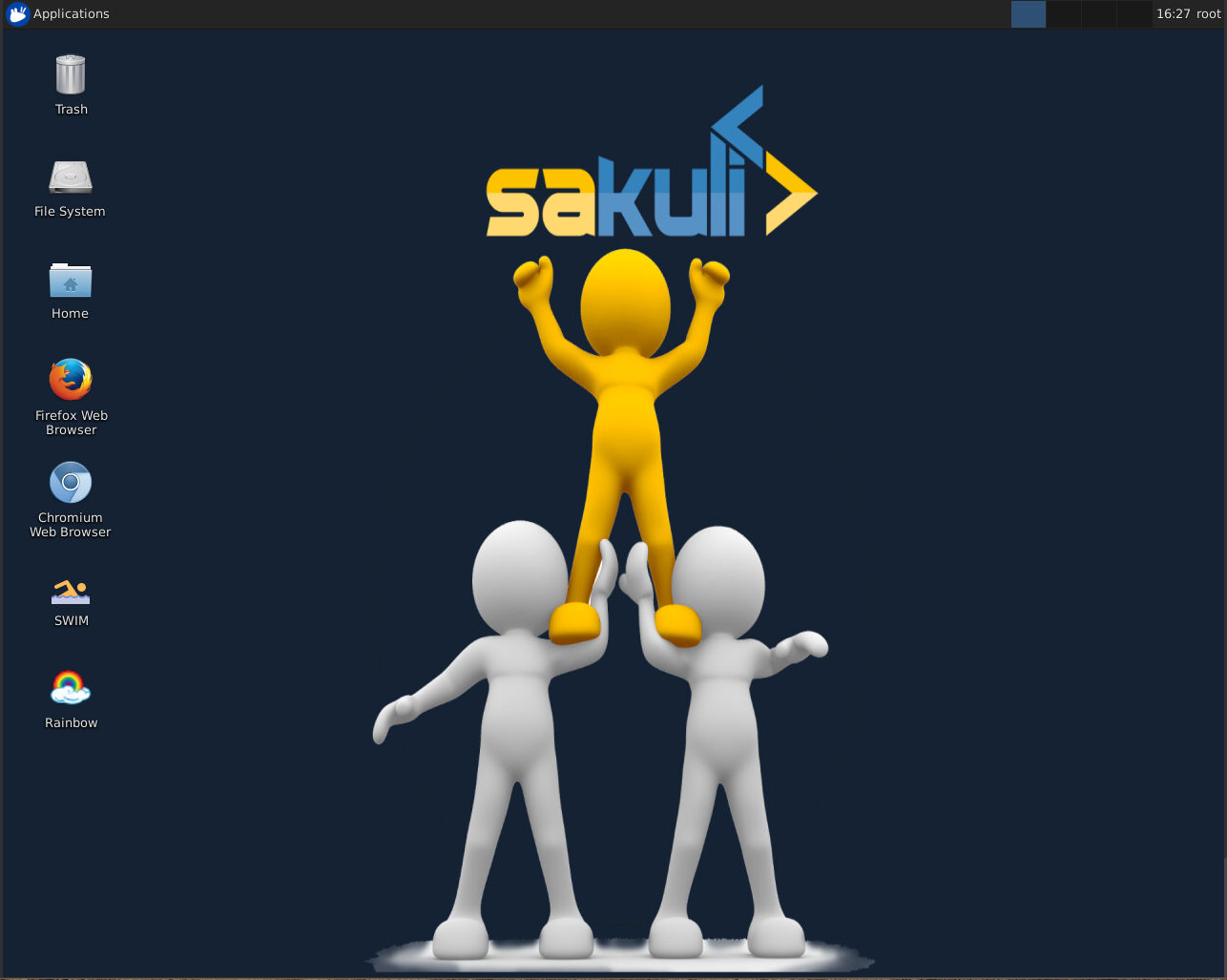
-
To start SWIM, double-click the SWIM logo:
 . This launches a GUI
interface from which the candidate arrival traffic profile for SWIM can be selected.
. This launches a GUI
interface from which the candidate arrival traffic profile for SWIM can be selected.
Double-clicking on one of the profiles will launch SWIM with that profile, starting with three initial servers all serving optional content.
-
To start Rainbow, double-click on the Rainbow logo:
 . This will bring up the Rainbow UI, which should look like: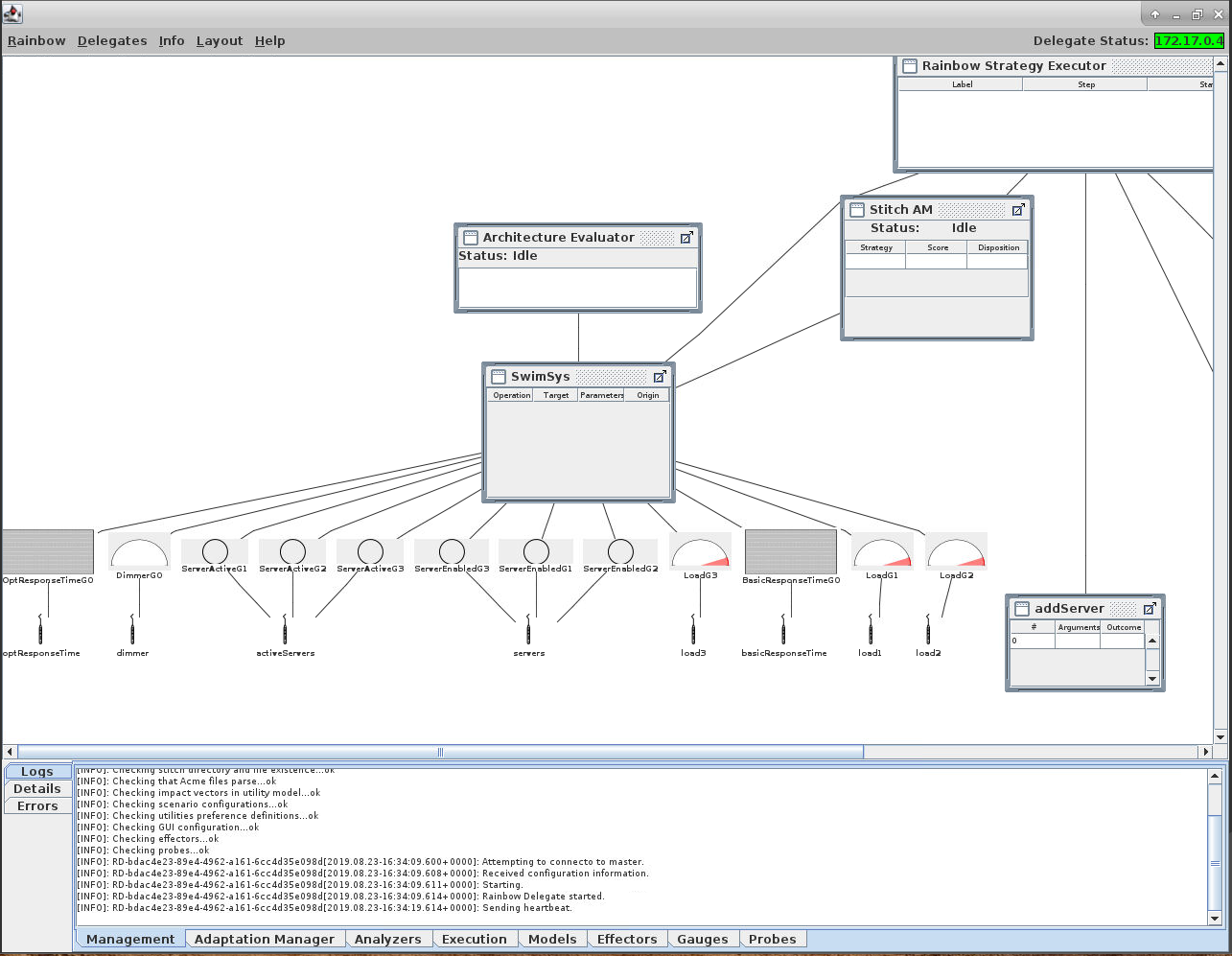
-
Rainbow should start automatically - you will see the model being updated via operations:
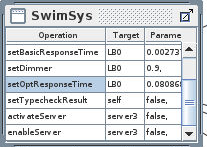
-
Eventually, Rainbow will detect that there are too many servers for the current traffic and attempt an adaptation. You should see something like:
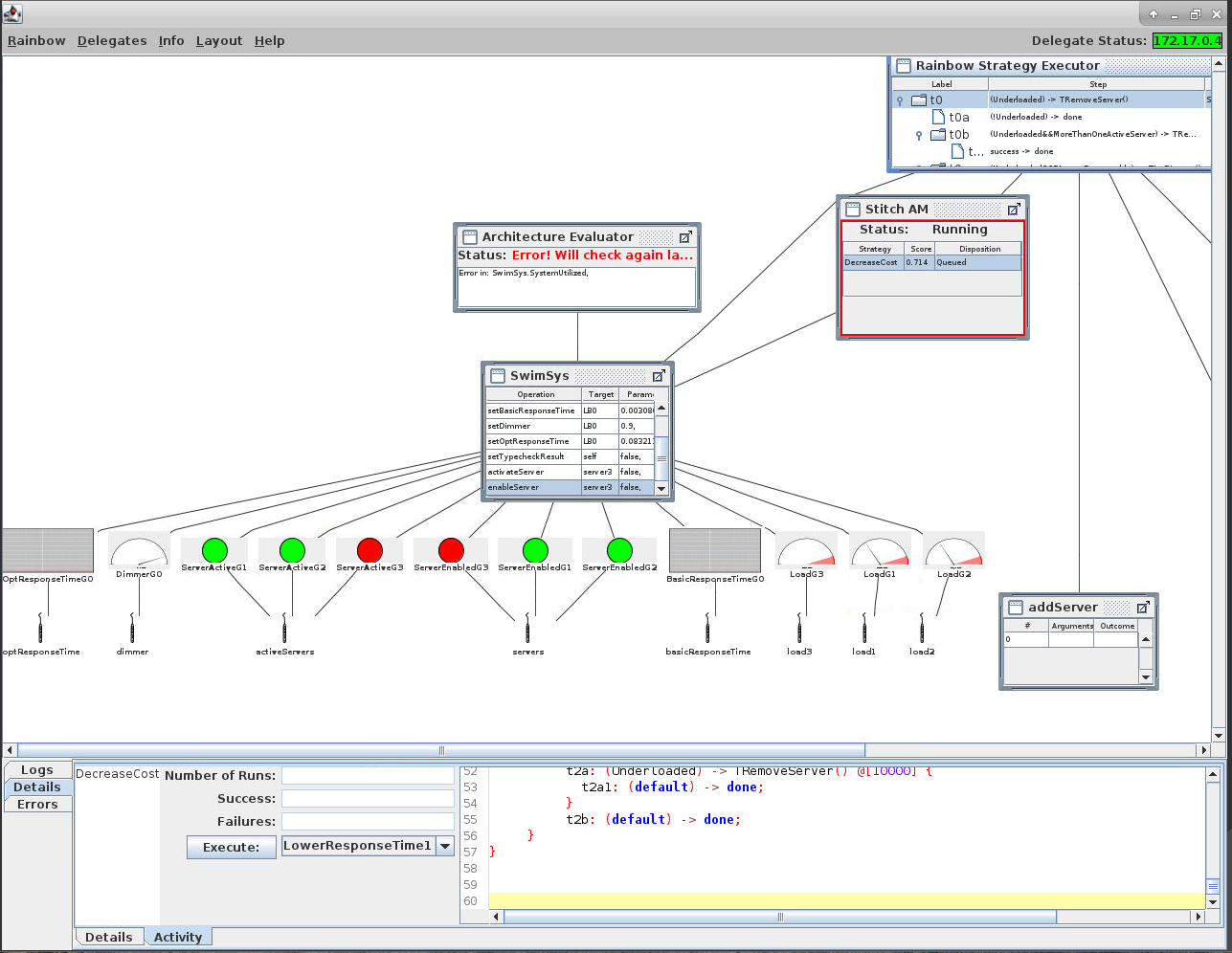 This shows that a server has been removed (the two red gauge lights indicating deactivation
and removal). Note that the
This shows that a server has been removed (the two red gauge lights indicating deactivation
and removal). Note that the Stitch AMwindow shoes that a strategy was queued (and is currently exectuing), and theRainbow Strategy Executoris showing details of what strategy is being executed. - More details about the Rainbow UI can be found in Rainbow UI Documentation